 Connections
sectionConnections
section
Connections
sectionConnections
section
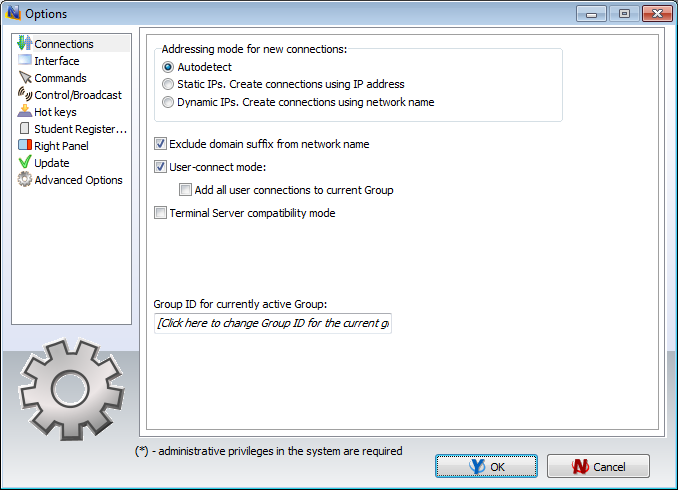
Addressing mode for new connections – determines what addressing mode will use Net Control 2 creating new connections for computers found in the process of scanning of the network:
Autodetect – Net Control 2 will try to determine the better mode for the connection according to the network adapter configuration;
Static IPs – the software will use IP address of client computer to connect it from the Administrator Console. IP address of client computer should be static (constant), otherwise after restart of the client computer, the address may be changed and the Control will be unable to find this computer in a network and connect it.
Dynamic IPs – use this mode if your network uses dynamic IP addresses (DHCP) or if you don’t know exactly what addressing model is used in your network.
Important! These settings will be in effect only for new connections. Particularly if some connections were created before these settings are changed, changing the options will not change addressing model of those connections. In this case you need to delete old connections, change settings and scan your network for new connections again.
Exclude domain suffix from network name – when creating new connections in a network with domain, Net Control 2 will use full DNS name, including host name and DNS suffix, for example: mycomputer.mydomain.local. Such full DNS name is recommended for addressing computers in a network with domain, but in cases when standard DNS server is not used (for example if Windows DNS server was replaced with a DNS server of a router) full network names cannot be recognized correctly. When this option is enabled, Net Control 2 will automatically remove DNS suffix and use plain computer name, for the example above is “mycomputer”.
Try to enable this option if after scanning the network for connections it will find some new connections but will be unable to connect them.
User-connect mode – (enabled by default). Enable this option if user-connections should be allowed. This is also required for terminal client connections.
Add all user connections to the current group – enable this command if all incoming user connections (including terminal client connections) should be always placed in the current group. When this option is disabled, incoming connections will be placed only to the group, to which this computer belongs.
Terminal Server compatibility mode – enable this option if any of clients was installed in Terminal Server compatibility mode.