Access
to system folders and settings (Policies)Access
to system folders and settings (Policies)
Access
to system folders and settings (Policies)Access
to system folders and settings (Policies)Policies are special, hidden system settings which enable or restrict access to system settings, objects or services. Policies are managed by Windows internally, and may depend on the version of that operating system. Most Policies require a restart of the computer or of the Windows shell to be applied. By default Windows applies a Policy only to the currently logged on user. Net Control 2 has the ability to apply policies to all users. Windows and its components use more than 2000 different policies, Net Control 2 implements only the most popular of these.
Profiles.
Policies may be applied using the Restrictions tool or the Tools -> Policies menu command.
The restrictions window contains two pre-defined modes for quick access:
Guest Mode – restricts access to the Control Panel the Desktop settings, and the Taskbar.
Master mode – disables all restrictions.
Advanced configuration may be done using the Profiles window. This window contains several pre-defined profiles and provides the ability to create your own profiles or to modify existing ones:
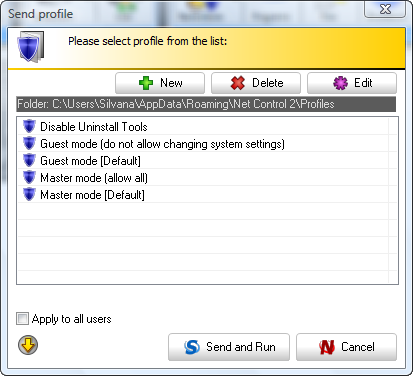
Pre-defined profiles:
Disable Uninstall Tools - disables access to the “Add/Remove programs” Control Panel program;
Guest mode – disables access to the most important system settings and folders;
Master mode – disables all restrictions. Enables normal access to system settings and folders.
Guest Mode (default) and Master Mode (default) profiles are mapped to Guest Mode and Master Mode buttons of the Restrictions tool. If you change these profiles, these buttons will work respectively in accordance with the changed profiles.
New button allows you to create new profile.
Delete button deletes the selected profile.
Edit button modifies the selected profile.
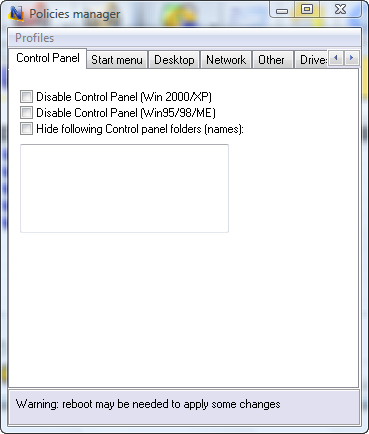
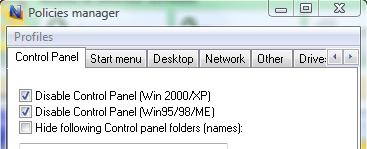
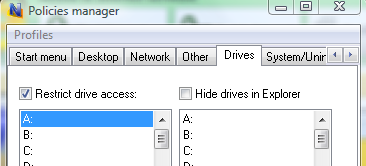
Clicking the New or Edit button of the Send profile window will open the Policies Editor window, where you can specify restrictions for the profile:
When sending a profile to a selected user computer, you can select the “Apply to all users” option in the Send Profile dialog window to apply the profile to all users. When this option is not selected, the restriction will be applied to currently logged in users only.
Many policies may require a restart of Windows Shell (Explorer) to be applied.
To apply settings, you can either:
Restart user computers after sending a profile;
Log the current user out and require a new log in;
Restart Windows shell manually: terminate explorer.exe process using Program Manager and then restart it.